
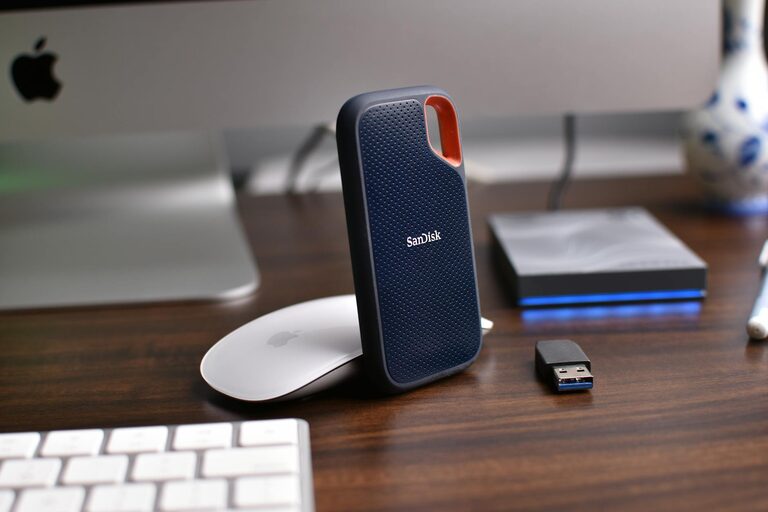
Keeping files organized on your computer might seem like a small task, but it can have a big impact on your productivity and overall digital experience. With the increasing amount of data we create and store daily, a clear and consistent system for managing files helps prevent lost documents and confusing clutter. Whether you’re a student, professional, or casual user, these practical tips will guide you in creating an organized digital workspace.
Why Organizing Files Matters
Before diving into how to organize your files, it’s helpful to understand why this habit is important:
– Efficiency: Quickly locate the files you need without wasting time searching.
– Space Management: Avoid storing duplicate or unnecessary files, freeing up storage.
– Backup Ease: Well-organized files make backup processes smoother.
– Stress Reduction: A tidy digital space can reduce frustration and improve focus.
Start with a Clear Folder Structure
The foundation of file organization lies in how you arrange folders.
Create Broad Categories
Begin by identifying the main areas your files fall into. For example:
– Work
– Personal
– Projects
– Finances
– Photos
Use Subfolders
Within each broad folder, add subfolders to further categorize documents. For example, under “Work,” you can have folders for:
– Reports
– Meeting Notes
– Presentations
This hierarchy helps keep files logically grouped and easier to find.
Avoid Too Many Nested Folders
While subfolders are helpful, creating too many levels can become confusing. Aim for balance by keeping folder nesting to two or three levels deep.
Use Consistent and Descriptive Naming Conventions
How you name your files and folders can greatly affect their findability.
Be Specific and Clear
Instead of vague names like “Document1,” use names like “2024_Q1_Sales_Report.” This helps instantly recognize the content.
Include Dates in Filenames
Adding dates can help sort files chronologically. Use a standard format like YYYY-MM-DD (e.g., 2024-06-15_Meeting_Agenda).
Avoid Special Characters and Spaces
Use underscores (_) or hyphens (-) instead of spaces, and avoid special characters like / \ ? % * : ” > < |. This practice ensures compatibility across different systems.
Regularly Declutter and Archive
Organization is not a one-time task. Make a habit of reviewing your files periodically.
Delete Unnecessary Files
Remove duplicates, outdated versions, and files you no longer need.
Archive Old Files
Move infrequently used or completed project files to an archive folder or external storage to keep your main folders clean.
Set Calendar Reminders
Schedule quarterly or monthly checks to maintain file organization.
Utilize Built-In Tools and Features
Your operating system offers several tools to help organize files efficiently.
Use Search and Tags
Modern systems allow you to tag files with keywords and use powerful search options to find files without browsing folders.
Bookmark Frequently Used Locations
Pin often-accessed folders in your file explorer for quick access.
Take Advantage of Cloud Storage
Services like Google Drive, Dropbox, or OneDrive often include file organization tools, automatic backups, and easy sharing options.
Backup Your Organized Files
An organized system will only be as good as your backup strategy.
Use External Drives or Cloud Backup
Regularly back up your files to prevent data loss due to hardware failure or other issues.
Automate Backups When Possible
Set up automatic backups to reduce the chances of forgetting this important step.
Tips for Managing Specific File Types
Photos and Videos
– Organize by event or date.
– Use photo management software to tag and sort pictures.
Documents and Spreadsheets
– Keep versions organized and clearly labeled.
– Store templates in a dedicated folder.
Downloads Folder
Set up a routine to move downloaded files to their proper folders to prevent buildup.
Final Thoughts
Organizing files on your computer may take some initial effort, but the time saved and reduced frustration is well worth it. By creating a clear folder structure, using descriptive names, regularly decluttering, and leveraging built-in tools, you’ll maintain a tidy digital space. Remember, a little organization today goes a long way toward a smoother workflow tomorrow.
Happy organizing!